Day 18: Build an MCP Server in Node.js Without Getting Lost in the Protocol
A practical step-by-step guide to creating your first MCP server with tools, local data, and a real developer workflow
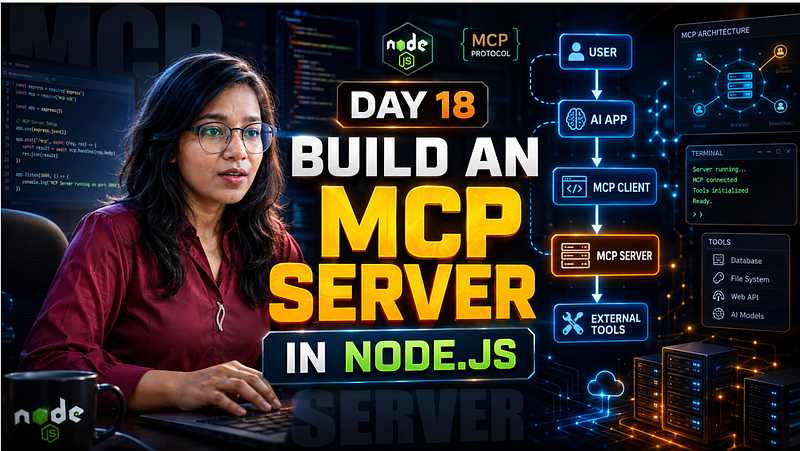
The first time I looked at MCP, I made one wrong assumption:
I thought MCP was another AI model feature.
It is not.
MCP does not magically make an LLM smarter. It gives your AI app a clean way to talk to external tools, files, APIs, databases, and internal systems.
That small difference matters a lot.
Because once you understand MCP, you stop thinking:
“How do I make the model know everything?”
And you start thinking:
“How do I safely expose the right capabilities to the model?”
The Problem MCP Solves
Imagine you are building a “chat with developer notes” app.
Without MCP, you might directly connect your AI app to:
- File system
- Database
- APIs
- Search functions
- Custom scripts
It works at first.
Then your app grows.
Now every AI client needs custom logic for every tool.
That becomes messy fast.
MCP solves this by creating a standard layer between the AI client and your tools.
If you would like to learn AI with us, make sure to save this series. It’s free and available to everyone on Medium
Zero to AI Expert in 30 Days
What We Are Building
We will build a simple MCP server in Node.js that exposes two tools:
search_notes— searches local developer notessummarize_note— summarises a note by ID
This is small, but the pattern is production-friendly.
```mermaid
flowchart TD
 A[User Ask] --> B[AI Client]
 B --> C[Tool Discovery]
 C --> D[search_notes Tool]
 D --> E[Local JSON Data]
 E --> F[Tool Result]
 F --> G[Final Answer]
```
Step 1: Create the Project
mkdir day18-mcp-server-node
cd day18-mcp-server-node
npm init -y
Install dependencies:
npm install @modelcontextprotocol/server zod
npm install -D typescript tsx @types/node
Why TypeScript?
Because MCP tools depend heavily on structured input, if your tool schema is wrong, the AI client may call your tool incorrectly.
Type safety helps catch mistakes early.
Step 2: Configure TypeScript
Create tsconfig.json:
{
 "compilerOptions": {
 "target": "ES2022",
 "module": "NodeNext",
 "moduleResolution": "NodeNext",
 "outDir": "dist",
 "rootDir": "src",
 "strict": true
 },
 "include": ["src/**/*.ts"]
}
Also update package.json:
{
 "type": "module",
 "scripts": {
 "dev": "tsx src/index.ts",
 "build": "tsc",
 "start": "node dist/index.js"
 }
}
The important part is "type": "module".
Most MCP examples use modern ESM imports. Mixing CommonJS and ESM is one of those small mistakes that wastes 30 minutes for no good reason.
Step 3: Add Local Data
Create data/notes.json:
[
 {
 "id": "rag-debugging",
 "title": "RAG Debugging Checklist",
 "tags": ["rag", "debugging", "ai"],
 "content": "When a RAG answer is wrong, check retrieval first. Most bad answers come from missing or weak context, not the final LLM call."
 },
 {
 "id": "mcp-learning",
 "title": "MCP Learning Note",
 "tags": ["mcp", "tools", "agents"],
 "content": "An MCP server exposes tools, resources, and prompts. The model still decides when to call a tool."
 }
]
This could easily be replaced later with MongoDB, PostgreSQL, Notion, GitHub, or an internal API.
That is the point.
Your MCP server becomes the bridge.
Step 4: Create the MCP Server
Create src/index.ts:
import { readFile } from "node:fs/promises";
import { McpServer } from "@modelcontextprotocol/server";
import { StdioServerTransport } from "@modelcontextprotocol/server/stdio";
import * as z from "zod/v4";
type Note = {
 id: string;
 title: string;
 tags: string[];
 content: string;
};
async function loadNotes(): Promise<Note[]> {
 const raw = await readFile("./data/notes.json", "utf-8");
 return JSON.parse(raw);
}
Here, we are loading notes from a JSON file.
In a real project, this function might call a database or API.
Step 5: Register Your First Tool
const server = new McpServer({
 name: "day18-notes-mcp-server",
 version: "1.0.0"
});
server.registerTool(
 "search_notes",
 {
 title: "Search Notes",
 description: "Search local developer notes by keyword or tag.",
 inputSchema: z.object({
 query: z.string().min(1),
 limit: z.number().int().min(1).max(10).default(5)
 })
 },
 async ({ query, limit }) => {
 const notes = await loadNotes();
 const matches = notes
 .filter(note =>
 [note.title, note.content, ...note.tags]
 .join(" ")
 .toLowerCase()
 .includes(query.toLowerCase())
 )
 .slice(0, limit);
 return {
 content: [
 {
 type: "text",
 text: matches.length
 ? matches.map(note => `${note.title}: ${note.content}`).join("\n\n")
 : `No notes found for "${query}".`
 }
 ]
 };
 }
);
This is where things get interesting.
You are not writing a chatbot response here.
You are writing a tool.
The AI client can inspect this tool, understand its input schema, and call it when needed.
Step 6: Connect the Transport
async function main() {
 const transport = new StdioServerTransport();
 await server.connect(transport);
}
main().catch(error => {
 console.error("MCP server failed:", error);
 process.exit(1);
});
For local development, stdio is usually the easiest transport.
The MCP client starts your server as a process and communicates through standard input/output.
Step 7: How to Actually Use This MCP Server
At this point, we have created the MCP server.
But here is the part that confused me initially:
You do not open this server in the browser like an Express app.
There is no localhost:3000.
There is no REST endpoint like:
GET /search-notesAn MCP server is meant to be used by an MCP client.
That client can be:
- MCP Inspector
- Claude Desktop
- Cursor
- VS Code extension
- Any custom AI app that supports MCP
So the real flow looks like this:
MCP Client → Starts MCP Server → Discovers Tools → Calls Tool → Receives Result]Option 1: Test It with MCP Inspector
Before connecting the server to Claude or Cursor, I prefer testing it with MCP Inspector.
Think of MCP Inspector as a Postman for MCP servers.
First, build the project:
npm run buildThen start the Inspector:
npx @modelcontextprotocol/inspectorThe terminal will show a local Inspector URL and a session token.
Open the Inspector URL in your browser.
If it asks for a token, copy the session token from the terminal and paste it inside Configuration.
Now connect your MCP server.
Use this configuration:
Transport Type: STDIO
Command:
node
Arguments:
dist/index.js
Then click Connect.
If everything is working, you should see the tools exposed by your server:
search_notes
summarize_note
Now try calling search_notes with this input:
{
 "query": "mcp",
 "limit": 3
}
You should get a response from your local notes.json file.
That means your MCP server is working.
What Actually Happens Behind the Scenes?
When you click connect, the Inspector starts your MCP server as a child process.
It is almost like running:
node dist/index.jsBut instead of you typing input manually, the Inspector communicates with the server using MCP messages over STDIO.
Here is the simplified flow:
Inspector
 ↓
Starts Node.js MCP server
 ↓
Reads available tools
 ↓
Shows tools in UI
 ↓
You call search_notes
 ↓
Server reads notes.json
 ↓
Server returns matching notes
The important point is this:
The MCP server does not decide when to answer the user.
It only exposes tools.
The MCP client decides when and how to use those tools.
Option 2: Use It with Claude Desktop
Once the server works in Inspector, you can connect it to Claude Desktop.
First, build the project:
npm run buildNow find the absolute path of your built file:
pwdIf your project is inside:
/Users/neha/firstmcpthen your server file path will be:
/Users/neha/firstmcp/dist/index.jsNow open Claude Desktop config.
On macOS, it is usually here:
~/Library/Application Support/Claude/claude_desktop_config.jsonAdd your MCP server:
{
 "mcpServers": {
 "notes": {
 "command": "node",
 "args": [
 "/Users/neha/firstmcp/dist/index.js"
 ]
 }
 }
}
Restart Claude Desktop.
Now Claude can discover your MCP tools.
Try asking:
Search my developer notes for MCP.Claude should be able to call your search_notes tool and use the result in their answer.
Option 3: Run It in Development Mode
During development, you may not want to build the project every time.
In that case, you can run the TypeScript file directly.
In MCP Inspector, use:
Command:
npx
Arguments:
tsx src/index.ts
This is useful while editing the server.
But for Claude Desktop, I prefer using the compiled JavaScript file:
node dist/index.jsIt is more stable and avoids TypeScript runtime issues.
How to Know It Is Working
Your server is working correctly if:
- Inspector connects successfully
- Your tools are visible
search_notesaccepts input- It returns data from
notes.json - Claude or another MCP client can call the tool
A successful tool response looks like this:
{
 "content": [
 {
 "type": "text",
 "text": "MCP Learning Note: An MCP server exposes tools, resources, and prompts..."
 }
 ]
}
Common Mistakes
Mistake 1: Thinking MCP calls the LLM
It does not.
Your MCP server exposes capabilities. The AI client and model decide when to use them.
Mistake 2: Returning random JSON
MCP tools expect structured responses.
This works:
return {
 content: [{ type: "text", text: "Result here" }]
};
This does not:
return { result: "Result here" };Small difference. Big debugging headache.
Mistake 3: Making tools too broad
Bad tool:
run_any_command(command: string)Better tool:
search_notes(query: string, limit: number)The more specific your tool is, the safer and easier it is for the model to use.
You can access the code on GitHub
Tradeoffs
MCP is useful when you want a standard way to expose tools to AI clients.
But you may not need MCP if:
- You are building a simple one-off chatbot
- Your app only calls one internal API
- You do not need tool discovery
- You control both the client and backend completely
In those cases, normal API routes may be enough.
The Surprising Payoff
The biggest benefit of MCP is not the code.
It is the separation.
Your AI client does not need to know how notes are stored.
Your database does not need to know anything about the model.
Your MCP server becomes a clean boundary between reasoning and execution.
That is what makes the architecture easier to extend.
Today it searches JSON.
Tomorrow it can search PostgreSQL, GitHub issues, Notion pages, or production logs.
Reflection
After building a few AI apps, I realized most complexity does not come from the LLM call.
It comes from everything around it.
Permissions. Tool design. Data access. Error handling. Debugging.
MCP forces you to think about these boundaries clearly.
That is why it matters.
Not because it is trendy.
Because it gives your AI application a cleaner shape.
Key Takeaways
- MCP is a protocol for connecting AI clients to tools and data.
- An MCP server exposes capabilities like tools, resources, and prompts.
- Tools should be specific, typed, and safe.
- Start small with local data before connecting production systems.
- The real value is architectural separation.
Your next step: take one internal workflow you repeat often and ask yourself:
Could this become a safe MCP tool?
Missed the previous articles?
Read here: Build a Resume Analyser Using AI
Read here: Vector Databases Explained
Upcoming
🚀 Transitioning into AI as a developer?
I’m building a practical 30-day roadmap to help developers move into AI — step by step, without random tutorials or confusion.
👉 Follow this series so you don’t miss the next day.
👉 Bookmark this article — you’ll want to revisit it.
👉 What’s the biggest thing confusing you about AI right now? Drop it in the comments — I may cover it next.